Authorize the connection
Password-free guest access requires explicit approval. Account access must be authorized for the selected device.
REMOTE SUPPORT · TEAM WORKSPACE
View and control authorized Windows and Android devices in the apps. Keep meetings, team chat and account management in your browser.
Remote view and controlWindowsAndroid
Available features still depend on your account, permissions and service configuration.
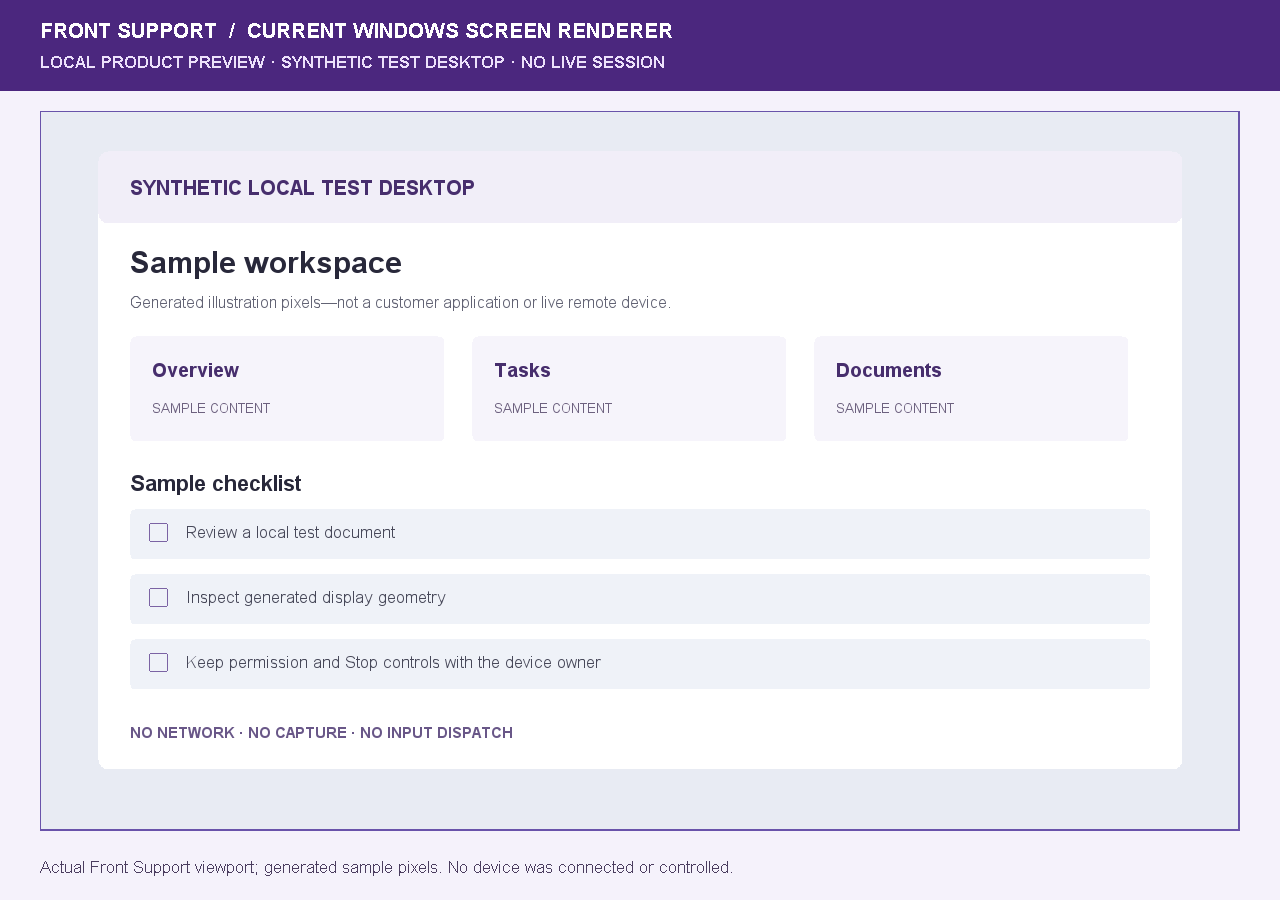
See the screen, guide the next step, and control supported devices through the Front Support apps.
Password-free guest access requires explicit approval. Account access must be authorized for the selected device.
Screen capture and control depend on operating-system permissions. Protected content and unsupported controls remain unavailable.
The device owner keeps local session controls. A product preview is not an active connection.
Remote support, meetings and your account—clearly separated.
Windows and Android evaluation downloads. Check platform permissions before connecting.
Open the browser workspace. Availability depends on account access and service configuration.
Use your account workspace for company conversations and access controls.
One connected support workspace
BUILT AROUND YOUR WORK
From the office desktop to the service counter, make the next support step easier to find.
Use the installed apps to reach an authorized device and work through the issue together.
Explore remote supportBring device groups, reported inventory and shared access into one clear workspace.
Explore device managementOrganize company roles, invite your people and keep conversations close to the work.
Explore team toolsCalls and meetings
Open the browser workspace. Availability depends on account access and service configuration.
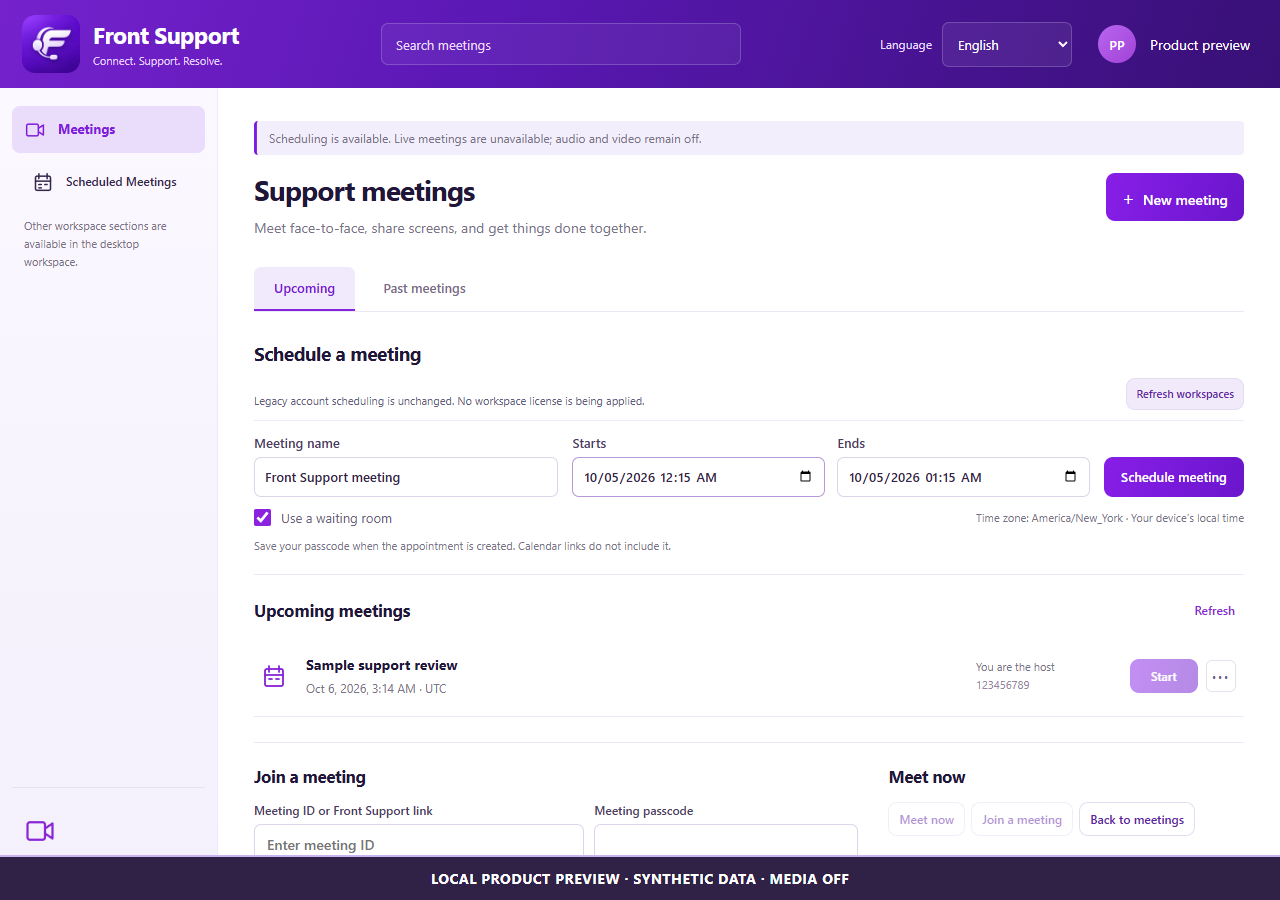
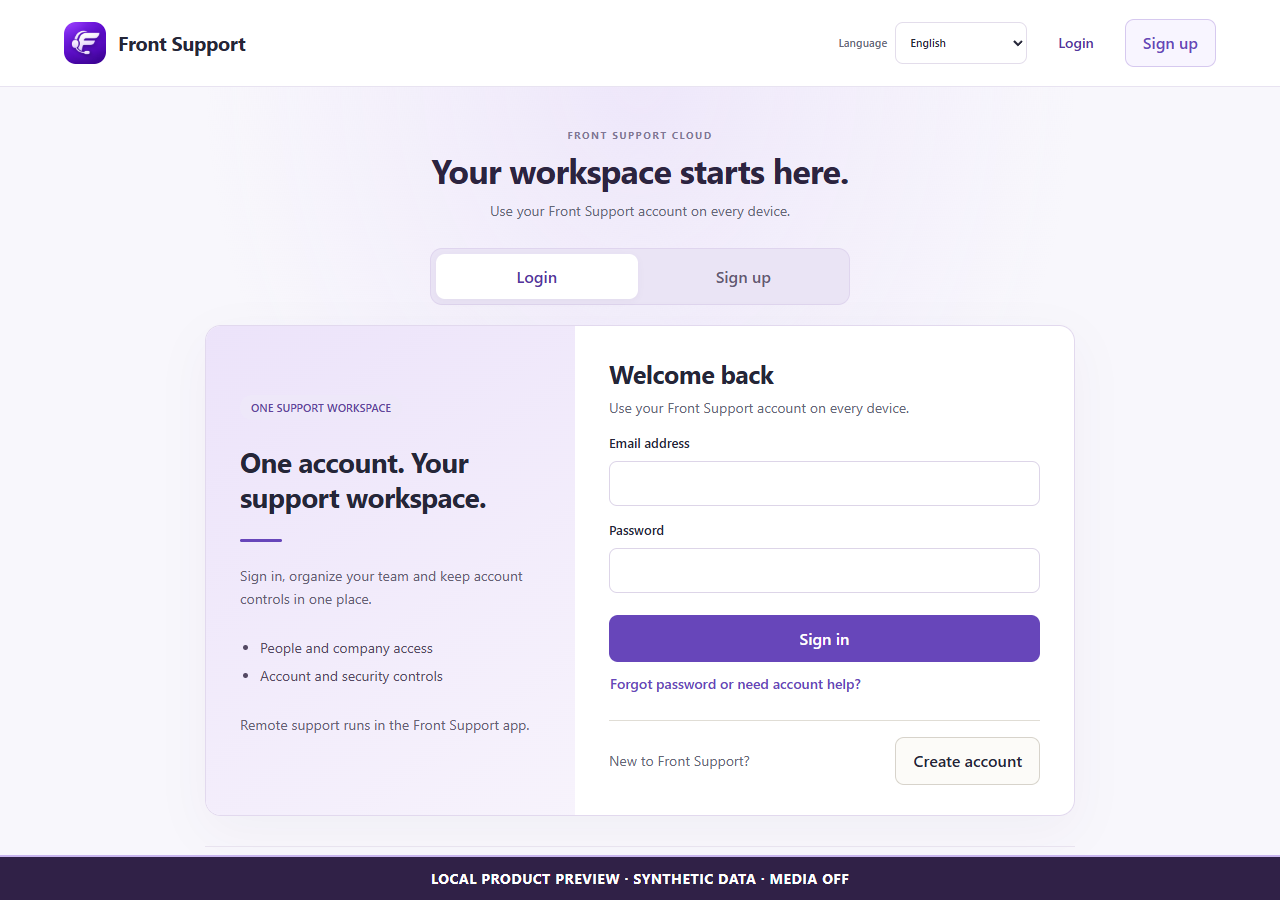
Preview screens use local sample data, not customer accounts.
CONNECTED, NOT COMPLICATED
Sign in to manage your team. Private chat stays inside authorized company conversations.
Preview screens use local sample data, not customer accounts.
A PRACTICAL WORKFLOW
Open the browser workspace. Availability depends on account access and service configuration.
Open browser meetingsSave devices, group access and invite the right support users.
Get startedApp permissions stay with the device owner.
Download Front SupportHELP ALONG THE WAY
Setup guidance, account recovery and practical answers before your next connection.
FRONT SUPPORT PRODUCTS
Apps for sessions. A cloud workspace for the people, devices and business behind them.
Run sessions in the installed apps. Screen control depends on Host authorization and supported device permissions.
View reported manufacturer, model, software versions, serial number and available MAC addresses. Missing or restricted values are shown honestly.
Organize members, roles and shared device access without making every user an administrator.
Available features still depend on your account, permissions and service configuration.
Open browser meetingsUse your display name, email confirmation and verified recovery contact to manage your account.
Review company plans, subscriptions and invoices in the website. Actual availability is shown by the billing service.
PLANS & LICENSES
Front Support Complete brings remote support, meetings and chat into one paid bundle for individuals and companies.
Check plan availabilityThis is the intended plan policy, not an offer to charge you. Confirm price, included quantities and enabled services in your workspace before purchase. This page does not activate checkout or live meeting media.
FREE ACCOUNT
The standard free account does not include Host or unattended device hosting.
Free meetings have a 40-minute duration limit when the meeting service is available.
ONE PAID BUNDLE
Remote support, meetings and chat are not sold as separate plans.
Paid meetings have no plan-level duration limit. Participant limits, service availability and usage terms must still be confirmed.
Eligible paid individuals and companies can use Host within their confirmed license allowances.
A single paid plan still has defined capacity. Confirm these quantities before subscribing; do not assume unlimited devices or simultaneous sessions.
A technician seat identifies a support user included in the company plan.
Registered devices count even when offline. A device does not disappear because it is unused.
A concurrent-session allowance limits sessions at the same time, not total accounts.
Checkout is available only when billing is enabled and your account is authorized. Confirm the price, taxes and recurring terms on the payment provider before paying.
Creating an account or company does not buy a subscription.
Your workspace shows the server-reported subscription and license status; a return URL alone does not activate access.
HELP & GETTING STARTED
Set up accounts, authorize devices and connect with a clear understanding of what the platform can do.
Company enrollment depends on the workspace and Host versions, approved membership and enabled services. An unavailable service must be configured before it can be used.
Create your account with your name and email. The workspace signs you in after successful registration.
Use the confirmation code sent by the configured email service. If email sending is unavailable, the workspace will say so.
Where company enrollment is available, enter a company code during signup or in My account. Your request stays pending until a company administrator approves it; the code alone gives no company access. Administrators review requests in their company workspace.
If you belong to several approved companies, select your Host company in My account. Supported Hosts can automatically use your only approved company. Pending or rejected requests cannot register company Hosts.
Host registration requires an eligible company and authorized membership. Install a matching Host version and authorize its required operating-system permissions.
Supported automatic enrollment reuses the existing device record. If the device belongs to another company, an explicit authorized transfer is required; a new sign-in must not silently move it.
A powered-off device or unavailable Host cannot accept a session. Last reported inventory is historical, not proof that the device is online now.
Only supported hardware and an available wake path can start a sleeping or powered-off device. Android shutdown/startup is device-dependent; an app cannot universally power on a switched-off device.
Android and the manufacturer control Accessibility, screen-capture consent and background behavior. Front Support must not bypass these controls.
Android playback capture depends on the OS and source app's capture policy. Protected audio and some system sounds are not available to ordinary apps.
Use the connection status in the app. Firewalls, NAT, routing and regional networks can affect a session; no connection method guarantees every network.
Use a secondary recovery email that you previously verified in My account. Without one, contact your company administrator.
Open account help →FRONT SUPPORT
Get started with your Front Support account.
Available features still depend on your account, permissions and service configuration.